Excel Habit Tracker: Free Templates + Easy Build (2026)
TL;DR. To build an Excel habit tracker: list your habits down column B, number the days 1–31 across row 3, and add checkboxes with Insert > Checkbox. Then color checked cells with conditional formatting and total each habit with COUNTIF. The build takes about 15 minutes — or start from one of the free templates below.
Search for an Excel habit tracker and you'll hit two dead ends. Template roundups that link to other template roundups, and Etsy listings charging $5 to $20 for a spreadsheet you could build during a coffee break.
Here's the third option nobody writes up: the exact grid, formulas, and formatting rules, step by step. You'll get real free templates first, then the full build — checkboxes, conditional formatting, COUNTIF totals, and a streak counter. Nothing here requires advanced Excel skills.
Why Excel works for habit tracking
Tracking works because seeing your progress changes your behavior. A meta-analysis of 138 studies found that prompting people to monitor their progress reliably increased goal success — and the effect grew when progress was recorded physically (Harkin et al., 2016). A habit grid is that principle in spreadsheet form.
Excel brings three things an app can't. The file is yours — no tracker subscription, no app account, and it works offline (Excel itself still needs a license or, on the web, a Microsoft account). You can shape it however you want: add notes columns, weekly scores, or charts. And if you already live in spreadsheets for work, there's zero learning curve.
One expectation to set before you start. Research from University College London found new habits take a median of about 66 days to become automatic — not 21. So build a tracker you can stand to open for two or three months, not two weeks (UCL). If you want the fundamentals of tracking itself, our guide to tracking habits covers the method side.
Free Excel habit tracker templates
Etsy is full of habit tracker spreadsheets priced like software — $4.99 at the low end, $19.99 for the "ultimate" bundles. Every feature in those listings appears in the free options below, or in the build later in this guide. Save your money.
Here are four genuinely free downloads, checked in August 2026:
| Template | What you get | Best for |
|---|---|---|
| Spreadsheet Daddy | 12 monthly grids, days 1–31, minimal design; Excel, Sheets, and PDF versions | A clean full-year setup |
| ExcelGuru | 31-day grid for up to 8 habits, completion rates, perfect-day highlights | Seeing the formulas — they're visible and editable |
| 24Billions | Monthly grid with progress bars and a daily activity heatmap | Visual progress without any setup |
| New Orchards | 30+ variations: daily, weekly, monthly, 30-day challenge formats | Browsing layouts before you commit |
None of these required an email address or payment when we checked. If you'd rather track on paper, our free printable habit tracker generates a one-page PDF grid you can stick on the fridge.
Templates are a fine starting point. But the reason to build your own is that you'll understand every formula in it — which means you can fix it, extend it, and trust it.
How to build a habit tracker in Excel
This build gives you a monthly grid with checkboxes, automatic color, totals, a completion rate, and a streak counter. Total time: about 15 minutes.
Step 1: Set up the grid
Open a blank workbook. In cell B3, type "Habit". In C3, type 1; in D3, type 2; then select both cells and drag the fill handle right until you reach 31 (column AG).
List your habits in B4 down to B8 or so. Start with three to five — a shorter list survives longer than an ambitious one. If you're stuck on what to pick, here are 100+ habit ideas by category.
Two quick polish moves. Select cell C4, then View > Freeze Panes > Freeze Panes, so habit names and day numbers stay visible as you scroll. And widen column B while shrinking the day columns to a square-ish 25 pixels.
Step 2: Add checkboxes
Select the grid — C4 to AG8 if you have five habits — and choose Insert > Checkbox. Modern Excel (Microsoft 365 and Excel for the web) fills every selected cell with a real checkbox. A checked box stores TRUE, an unchecked one stores FALSE, which is what makes the formulas later work (Microsoft's checkbox docs cover the details).
On an older version of Excel without Insert > Checkbox? Skip the boxes and type an "x" in each cell when you complete the habit. Everything below still works — you'll swap TRUE for "x" in the formulas.
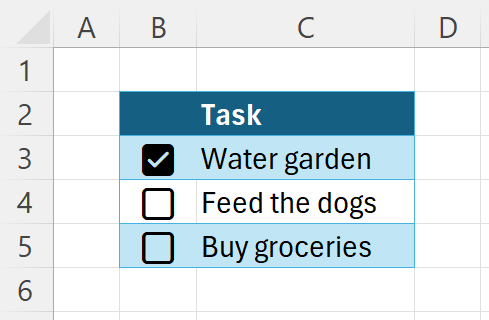
Source: Microsoft's checkbox documentation. This is Microsoft's feature example; the monthly grid described here has a different layout.
Step 3: Color checked days automatically
This is the part that makes the grid feel alive. Select the checkbox range, then go to Home > Conditional Formatting > Highlight Cells Rules > Equal To. Type TRUE in the box, pick a custom format with a green (or any) fill, and click OK.
Now every box you tick fills with color the moment you tick it. Your month becomes a visible chain of filled cells — and an unfilled gap is hard to ignore.
Step 4: Total each habit with COUNTIF
In cell AH3, type "Done". In AH4, enter:
=COUNTIF(C4:AG4,TRUE)
Copy it down for each habit row. The count updates live as you check boxes. Using "x" marks instead of checkboxes? Use =COUNTIF(C4:AG4,"x").
Step 5: Add a completion rate
In AI3, type "Rate". In AI4, enter:
=AH4/DAY(TODAY())
Format the column as a percentage. This divides habits done by days elapsed, so a perfect week shows 100% on day 7 — not a demoralizing 23%. It assumes you're tracking the current month, which is the normal case. Dividing by DAY(TODAY()) is wrong for an archived month, so when a month ends, change that tab's formula to divide by the month's length instead — =AH4/30 for a 30-day month.
For a visual touch, select the Done column and add Home > Conditional Formatting > Data Bars. Each habit gets a progress bar that grows through the month.
Step 6: Count your longest streak
In AJ3, type "Streak". In AJ4, enter:
=MAX(FREQUENCY(IF(C4:AG4=TRUE,COLUMN(C4:AG4)),IF(C4:AG4<>TRUE,COLUMN(C4:AG4))))
This returns the longest run of consecutive checked days in the row. In Microsoft 365, press Enter; in older Excel, confirm it with Ctrl+Shift+Enter. It looks intimidating, but the logic is plain: find where the unchecked days fall, and measure the longest gap between them.
Step 7: Save a blank master copy
Before you check a single box, right-click the sheet tab, choose Move or Copy, tick "Create a copy", and name the copy "Template". Each new month, duplicate the Template tab and rename it — September, October, and so on.
This is the two-click fix for the messiest part of spreadsheet tracking: resetting the grid. Your history stays intact in the old tabs, and the new month starts clean.
Formula cheat sheet
Every formula from the build in one place, assuming habits in rows 4–8 and days in columns C–AG. The formulas use English function names and comma separators; your Excel locale may require translated names or semicolons.
| Formula | What it does |
|---|---|
=COUNTIF(C4:AG4,TRUE) | Days a habit was completed this month |
=COUNTIF(C4:C8,TRUE) | Habits completed on a single day (put under each column) |
=AH4/DAY(TODAY()) | Completion rate based on days elapsed (current month only) |
=MAX(FREQUENCY(IF(C4:AG4=TRUE,COLUMN(C4:AG4)),IF(C4:AG4<>TRUE,COLUMN(C4:AG4)))) | Longest streak of consecutive days |
=COUNTIF(C4:AG4,"x") | Completion count for "x"-style grids on older Excel |
Excel vs Google Sheets for habit tracking
Both handle a habit grid well, and the build above translates almost cell-for-cell. The real differences are where and how you'll fill it in.
If you live in Google's tools rather than Microsoft's, the same tracker built the Sheets way is in our Google Sheets habit tracker guide — checkboxes, SPARKLINE streak bars, and a copyable template.
| Excel | Google Sheets | |
|---|---|---|
| Cost | Free in the browser with a Microsoft account; desktop needs Microsoft 365 or an Office license | Free with a Google account |
| Offline | Excellent — it's a local file | Needs offline mode set up per file |
| Checkboxes | Microsoft 365 and web versions | Built in on every account |
| Phone check-ins | Clunky in the mobile app | Slightly better, still fiddly |
| Your data | A file you own on your machine | Lives in Google Drive |
Pick Excel if you want a local file you control, you already have Office, or you want the deeper formatting and charting tools. Pick Sheets if you check in from several devices and want the file everywhere without thinking about it.
When a spreadsheet stops working
An honest warning from people who've run the experiment: spreadsheet habit tracking most often dies at the logging step. The grid is beautiful on your laptop, but at 9pm you'd have to find the file, open it on a phone screen, and zoom into cell R7. So you skip it, plan to backfill, and three weeks later the tracker is a relic.
Excel also can't remind you. A tracker only helps if you open it, and the habits you most need to track are the ones you forget. That's the gap habit apps exist to fill — logging in one tap, streaks computed for you, and a reminder that finds you instead of waiting to be found. That's the core of what HabitBox, our own app, does, and the check-in takes about a second.
A reasonable setup many people land on: the spreadsheet for monthly review and tinkering, an app for daily capture. If you go the app route, we've compared the options in our guides to the best habit tracker apps and genuinely free habit trackers.
FAQ: Excel habit tracker
How do you make a habit tracker in Excel?
=COUNTIF(C4:AG4,TRUE) at the end of each row to total completions. The whole build takes about 15 minutes.Is there a free Excel habit tracker template?
How do you count a streak in Excel?
=MAX(FREQUENCY(IF(C4:AG4=TRUE,COLUMN(C4:AG4)),IF(C4:AG4<>TRUE,COLUMN(C4:AG4)))) on a row of checkboxes. FREQUENCY measures each unbroken run of checked days, and MAX returns the longest one. Press Enter in Microsoft 365, or Ctrl+Shift+Enter in older versions.Can you use an Excel habit tracker on your phone?
Should I use Excel or Google Sheets for a habit tracker?
The grid is the easy part — you can have checkboxes, colors, and a streak formula working before your next meeting. The habit of opening the file every evening is the real build. Start with three habits, put the file somewhere you'll see it, and let the chain of filled cells do the convincing.

Mira Hartwell
Editor, HabitBoxEditor at HabitBox. Writes about habit science and productivity, grounding every post in named research (Lally, Wood, Walker, Huberman) instead of recycled advice. Read full bio →