Google Sheets Habit Tracker: Free Templates & Build (2026)
TL;DR. To build a Google Sheets habit tracker: list your habits down column A, number the days of the month across row 1, select the empty grid, and click Insert > Checkbox. Then add a COUNTIF total for each row and conditional formatting to color checked days — the whole build takes about 10 minutes. Prefer ready-made? Copy one of the free templates below.
A spreadsheet is an underrated place to start tracking habits. It costs nothing, you control every cell, and Google Sheets in particular has three features that make the whole thing pleasant: real checkboxes, conditional formatting, and the SPARKLINE function.
One thing you should not do is pay for this. Etsy sellers charge $1 to $13 for habit tracker spreadsheets that do exactly what you can copy or build for free. This guide gives you both paths: five free templates, then a step-by-step build with every formula included.
Free Google Sheets habit tracker templates
The fastest route is copying a sheet someone else already built. Here are the best free options, with the honest catch for each one.
| Template | What you get | The catch |
|---|---|---|
| Spreadsheet Point | 5 free trackers, including daily, monthly, and annual versions | None — direct "make a copy" links, no email |
| TheGooDocs | One automated sheet that tracks up to 40 habits | Design-heavy — overkill if you track 3 habits |
| Jeremy's Tutorials | An advanced dashboard with weekly and monthly stats | The free copy link lives in a YouTube description (video below) |
| Sheetrix | A color-coded weekly layout with a month dropdown | Free version asks for your email; extra charts cost $4.95 |
| You Exec | A gamified tracker with reward amounts per habit | Requires creating an account first |
To use any of them, open the link while signed in to your Google account, then choose File > Make a copy. The copy lands in your Drive and is fully editable — the original stays untouched.
Pro tip: if you'd rather track on paper for a month before going digital, our printable habit tracker generates a one-page grid you can put on the fridge.
Build your own Google Sheets habit tracker in 10 minutes
Templates are fast, but a Google Sheets habit tracker you build yourself is one you understand — and can change without hunting through someone else's formulas. Here's the full build, step by step.
1. Set up the grid (2 minutes)
Open a new sheet (type sheets.new into your browser). In cells A2, A3, and A4, write three habits you want to track — three is plenty to start. If you're not sure which ones deserve a slot, our guide on what habits to track has 100+ ideas sorted by category.
Now number the days across the top: type 1 in B1 and 2 in C1, select both, and drag the small blue handle to the right until you reach 31 (column AF). In A1, enter the first day of the month as a real date — for example =DATE(2026,10,1) — so the formulas below know how long the month is. In shorter months, leave the columns past the last day unchecked. Finally, freeze your habit names in place with View > Freeze > 1 column so they stay visible when you scroll.
2. Insert checkboxes (1 minute)
Select the empty grid from B2 to AF4. Then click Insert > Checkbox. Every cell fills with a real, tappable checkbox — this is a built-in Sheets feature, no add-ons needed.
Behind the scenes, each checkbox stores TRUE when checked and FALSE when not. That detail matters in a moment, because it's what all the formulas count.
3. Color the chain (2 minutes)
Checked boxes are satisfying. Checked boxes that light up are better — and they turn your row into the classic "don't break the chain" visual.
Select B2:AF4 again and open Format > Conditional formatting. Under "Format rules," choose Custom formula is and enter:
=B2=TRUEPick a bold fill color and click Done. Now every day you check turns solid, and a good week becomes an unbroken colored streak you can see from across the room.
4. Add the totals (3 minutes)
Label cell AG1 "Done" and AH1 "Rate." In AG2, count the checked days for your first habit:
=COUNTIF(B2:AF2,TRUE)In AH2, turn that into a completion rate for the month:
=AG2/DAY(EOMONTH($A$1,0))DAY(EOMONTH(...)) returns the month's actual length, so February and 30-day months get the right denominator. Don't divide by COUNTA(B2:AF2) — every column holds a checkbox, so that always divides by 31 — or by COUNT, which only counts numbers and would divide by zero, because checkboxes are TRUE/FALSE values. The rate measures progress toward the whole month, so it starts low and climbs; an unchecked future day isn't a miss. Select AH2 and format it as a percent (Format > Number > Percent), then drag both formulas down to your other habit rows.
If you also want a daily score, add this under each day's column (B6, then drag across):
=COUNTIF(B2:B4,TRUE)5. Add a SPARKLINE progress bar (2 minutes)
This is the step that makes people fall in love with Sheets. The SPARKLINE function draws a tiny chart inside a single cell — no chart editor required.
In AI2, add a progress bar that fills as the month goes on:
=SPARKLINE(COUNTIF(B2:AF2,TRUE),{"charttype","bar";"max",DAY(EOMONTH($A$1,0));"color1","#f56f62"})Drag it down and each habit gets its own bar. That's the whole build: checkboxes, color, totals, and a chart, in about 10 minutes.
Upgrades: streaks, smart chips, and mood dropdowns
The basic grid works on day one. These three upgrades are worth adding in week two, once checking the boxes feels normal.
Streak formulas. To find your longest run of consecutive checked days this month, add this next to any habit row:
=ARRAYFORMULA(MAX(FREQUENCY(IF(B2:AF2=TRUE,COLUMN(B2:AF2)),IF(B2:AF2<>TRUE,COLUMN(B2:AF2)))))And for your current streak — how many days in a row you've checked, counting back from today:
=DAY(TODAY())-ARRAYFORMULA(MAX(IF((B$1:AF$1<=DAY(TODAY()))*(B2:AF2=FALSE),B$1:AF$1,0)))The current-streak formula reads today's box too, so it shows your streak once you've checked in for the day. Both formulas assume row 1 holds plain day numbers, which is how we built the grid above.
Smart chips. Google's own team suggests three upgrades using smart chips, all triggered by typing @ in a cell: insert a Google Calendar event for a habit you have already scheduled, attach a Doc or Slide you are working toward, and add a color-coded dropdown — or @emoji — to log your mood next to each day.
The full dashboard version. If you want weekly summaries, monthly charts, and a polished layout without building it yourself, this walkthrough is the best free one on YouTube — the copyable template is linked in the description.
It's also a genuinely good way to learn intermediate Sheets skills. Every formula gets explained on screen as it's typed.
Using your Google Sheets habit tracker on your phone
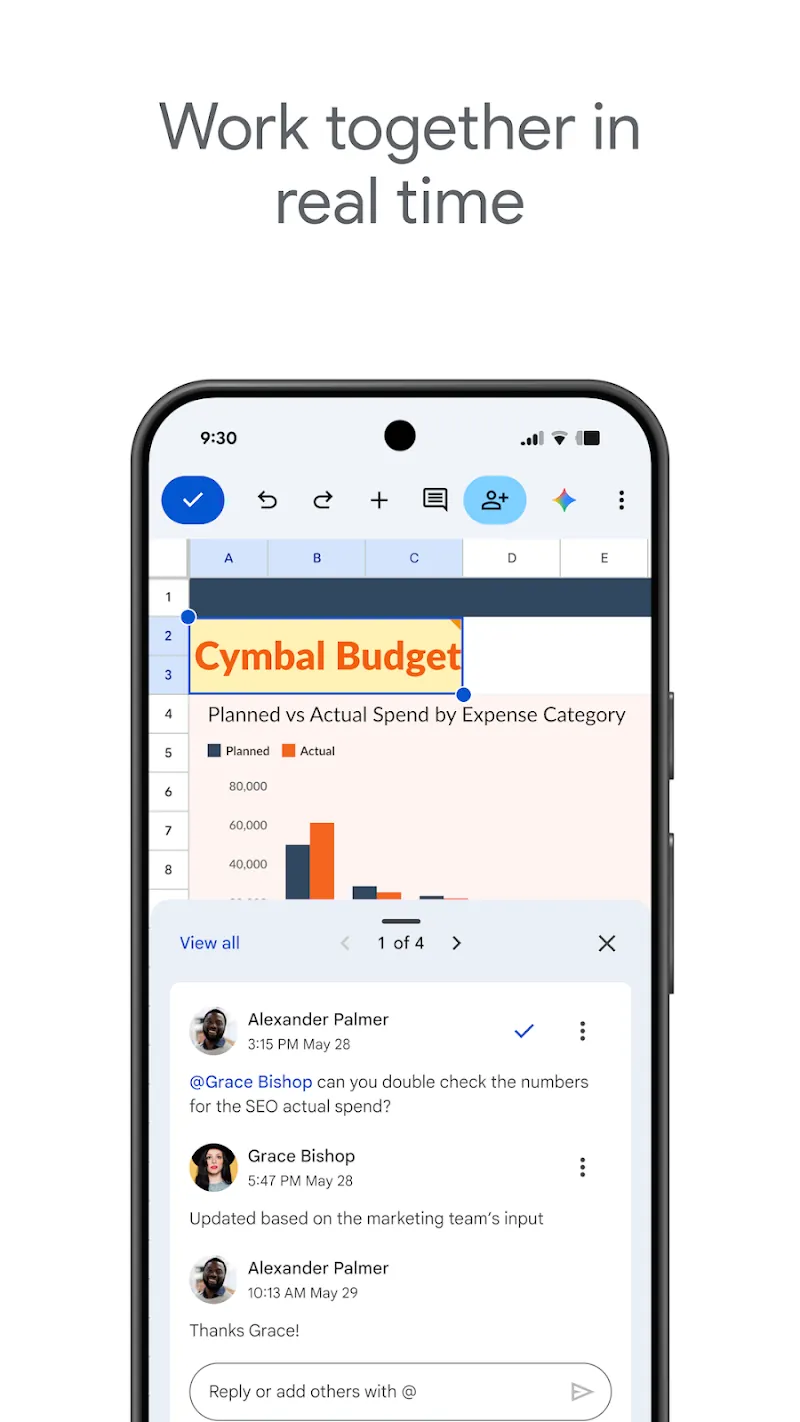
Your tracker works in the free Google Sheets app on iOS and Android. Open the file, tap a checkbox, and it toggles — the conditional formatting and totals update instantly. Because you froze column A, your habit names stay pinned while you scroll to today.
In practice, the phone experience is where spreadsheets show their limits. Logging means opening the app, finding the file, scrolling to today's column, and tapping a small cell — four steps for a two-second action.
There's also no home-screen widget for a Sheets grid, which matters more than it sounds: seeing your habits without opening anything is half the reminder. (Here's how habit tracker widgets close that gap on iPhone and Android.)
Where a spreadsheet habit tracker breaks down
Here's the honest part. A University College London study that followed 96 people found new habits took anywhere from 18 to 254 days to become automatic — a median of 66 days (James Clear has a good summary). Whatever tool you pick, you'll be logging for months, not weeks.
That's exactly where spreadsheets struggle. The grid can't remind you at 9 pm that you haven't checked in. Missed logging quietly turns into missed habits, because the feedback loop — see progress, feel good, repeat — only fires if you open the file.
Most people find the sheet gets loving attention for two or three weeks, then the tab stops getting opened.
None of this means the spreadsheet was a mistake. It means the system needs to get easier over time, not harder — the same principle behind why tracking habits works in the first place.
If your sheet is thriving after a month, keep going. If it's gathering dust, the tool is adding friction the habit can't afford.
Google Sheets vs. a habit tracker app
Both can work. The difference is where the effort goes.
| Google Sheets | Habit tracker app | |
|---|---|---|
| Setup | 10 minutes, or copy a template | Under a minute |
| Logging a day | Open file, scroll, tap cell | One tap from your home screen |
| Reminders | None built in | Scheduled notifications |
| Streaks | Manual formulas | Automatic, with history |
| Charts | You build them | Included |
| Customization | Unlimited — it's a spreadsheet | Whatever the app offers |
| Cost | Free | Usually free to start |
The spreadsheet wins on control and flexibility. An app wins at the moment that decides everything: the daily check-in. A dedicated tracker like HabitBox (our own app) turns that four-step log into one tap, sends a reminder before the day slips away, and draws the calendar heatmap and streaks automatically — with no account or sign-up needed.
A reasonable path: build the sheet this week, and you'll learn what you want to track and how you like to see progress. If the logging friction starts costing you check-ins, move to an app and keep the spreadsheet for monthly reviews. Our free habit tracker apps comparison shows what's genuinely free in 2026 if you go that route, and our best habit tracker apps compared guide weighs the paid picks alongside them.
FAQ
Does Google Sheets have a built-in habit tracker template?
How do I add checkboxes to a Google Sheets habit tracker?
=COUNTIF(B2:AF2,TRUE) can then count your completed days automatically.How do I track streaks in Google Sheets?
=ARRAYFORMULA(MAX(FREQUENCY(IF(B2:AF2=TRUE,COLUMN(B2:AF2)),IF(B2:AF2<>TRUE,COLUMN(B2:AF2))))). Sheets won't celebrate the streak or warn you before it breaks, though — that part stays manual.Can I use a Google Sheets habit tracker on my phone?
Is Google Sheets good for habit tracking?
Build the grid, check three boxes tonight, and let the colored chain do its job. The tracker that works is the one you'll still open in November.

Mira Hartwell
Editor, HabitBoxEditor at HabitBox. Writes about habit science and productivity, grounding every post in named research (Lally, Wood, Walker, Huberman) instead of recycled advice. Read full bio →